iPhone Screen Time limits not working? (2026)
You set an App Limit. Then you tapped Ignore Limit, or typed a Screen Time passcode you already know. The limit was on, and you were still in the app.
Direct answer
By default, iPhone Screen Time App Limits can be ignored once you reach them. Block at End of Limit is the Screen Time setting that turns that soft limit into a harder block: Ignore Limit for Today goes away, and after One More Minute iOS asks for the Screen Time passcode. That only helps if someone else holds the passcode. If you set it for yourself, you can still type it when you want the app. brb uses Apple's Screen Time controls with a different rule: the apps you choose stay blocked until you hit a step goal. Strict Mode removes the ignore button. The ordinary way back in is to walk. Emergency Unlock is the exception: five minutes, once a day.
What to do now
- If you want Screen Time itself to stop offering Ignore Limit, open Settings → Screen Time, set a Screen Time passcode, then open the App Limit and turn on Block at End of Limit. The toggle only appears after a passcode exists.
- If you are locking the phone for yourself, assume you will still know that passcode. That is when a step lock is the better rule.
- In brb, name the apps you open when you meant to stop. Instagram, TikTok, Safari, YouTube, a game. Those are the ones to block, not every app on the phone.
- Set a step goal you can hit on an ordinary day, turn on Strict Mode, and remove overlapping App Limits or Downtime that fight with brb. The FAQ walks through that.
What not to rely on
- An App Limit with Block at End of Limit left off. That is when Ignore Limit stays available.
- Block at End of Limit plus a Screen Time passcode only you know. You will type it when the craving hits.
- Downtime that ends on a clock while you are still in bed.
- Deleting the app, if you are going to install it again tonight.
What Block at End of Limit does
Block at End of Limit is Apple's toggle for making an App Limit enforceable. Without it, Screen Time is designed so you can tap through once the time is up. Apple's own guides describe limits as something that can be ignored by default.
Turn the toggle on and the shield changes. Ignore Limit for Today disappears. You usually still get One More Minute to finish what you were doing. After that minute, iOS asks for the Screen Time passcode instead of handing you the rest of the day for free.
The Block at End of Limit option only shows up after you lock Screen Time Settings with a passcode. If you cannot find the toggle, that is usually why. Downtime has a separate switch, Block at Downtime, with the same idea for scheduled windows.
Why iPhone Screen Time limits still let you through
iPhone Screen Time App Limits are real. They also assume the person who set the rule and the person who wants the app are not the same person. Parents hold the passcode. Kids hit the shield.
That design fails when both people are you. Block at End of Limit removes the casual Ignore Limit button, but the Screen Time passcode is still in your head at the exact moment you want Instagram. The limit did not break. It asked for permission, and you gave it.
How brb changes the rule
brb still uses Apple's Screen Time controls. The unlock rule is different. You pick the apps. You pick a step count. Those apps stay blocked until Apple Health says you reached the goal.
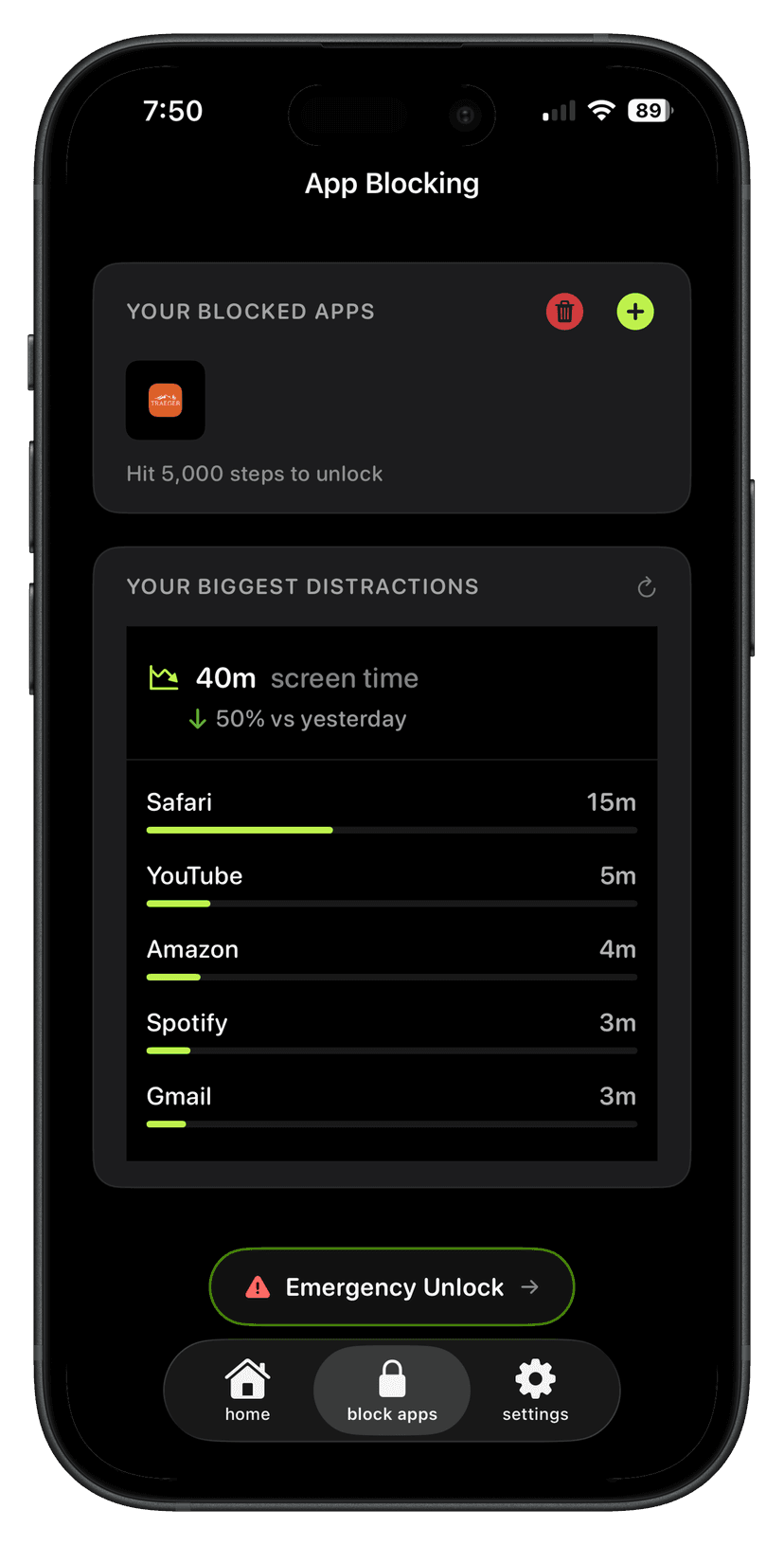
Strict Mode in brb is the piece that matters if Screen Time felt optional. It closes the casual way out while the apps are locked. Emergency Unlock remains for a real emergency: five minutes, once per day, from the Block Apps page. It is not an Ignore Limit button you can tap every fifteen minutes, and it is not the same as typing a passcode you invented for yourself.
How brb does it
Step 1
Block the apps
Pick the ones that take the time. brb can show them ranked by screen time.
Step 2
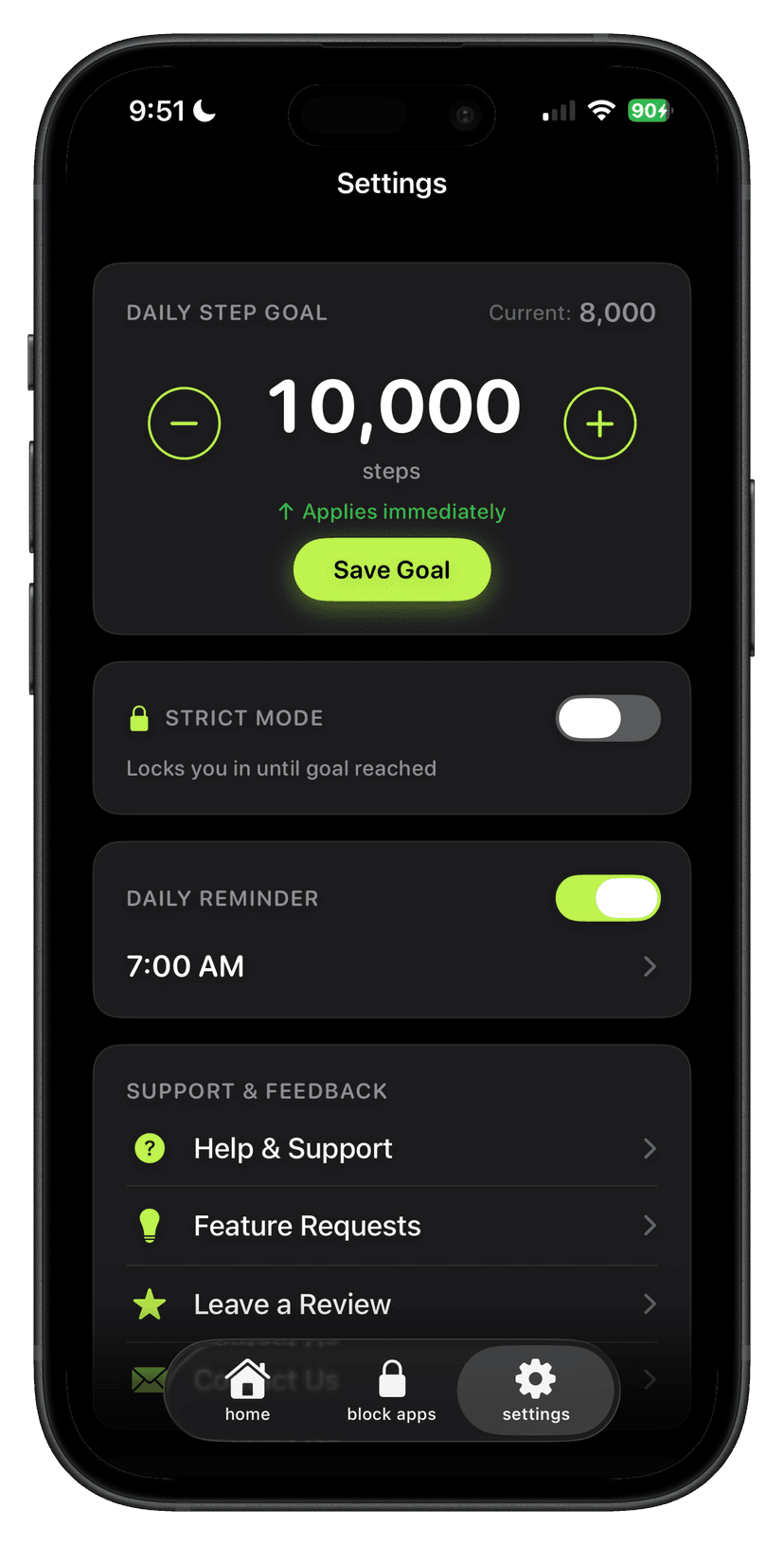
Set the step goal
The apps stay locked until that number is real.
Step 3
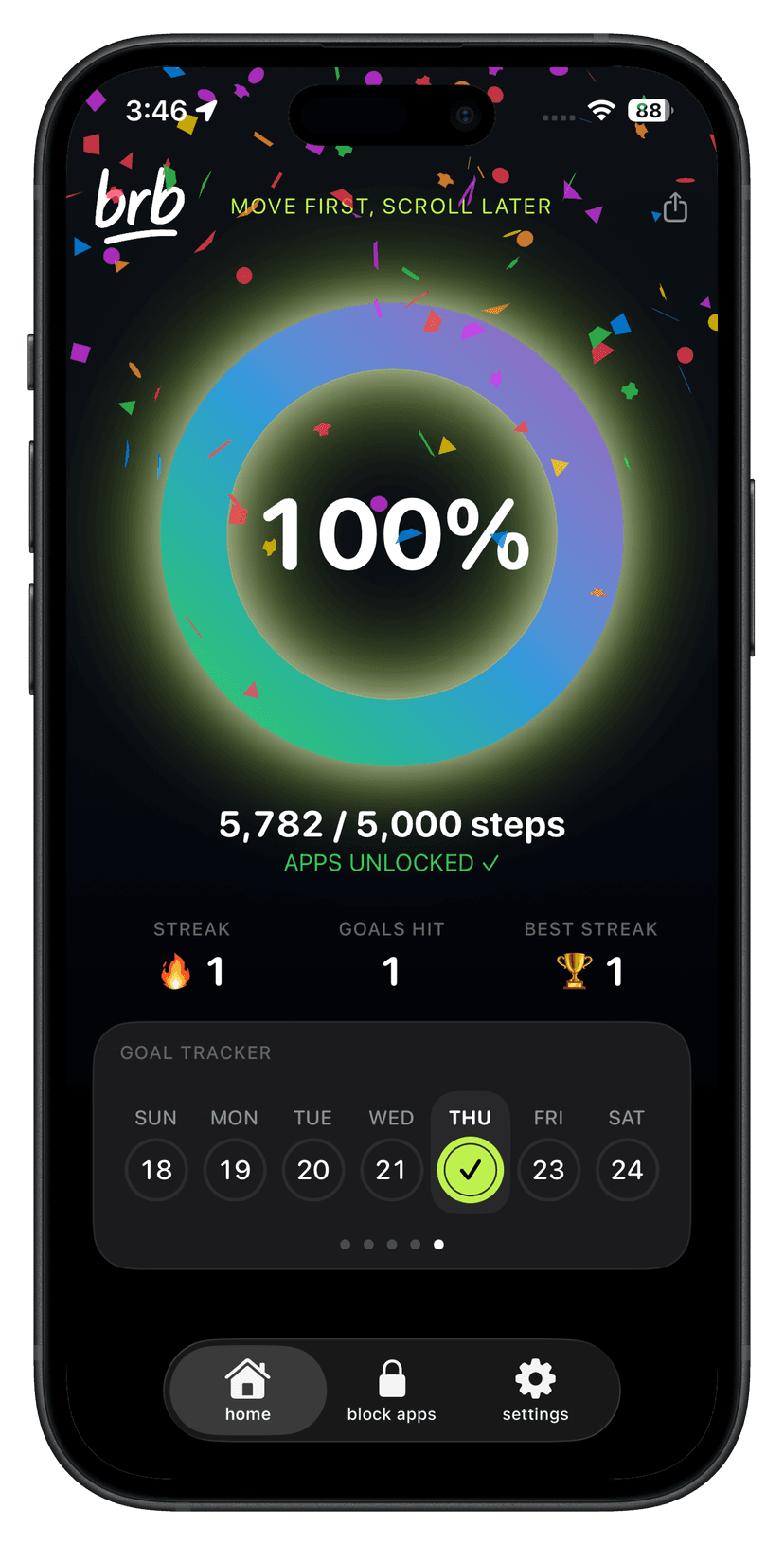
Walk to unlock
The ring fills as you move. Hit it and the apps open. Miss it and they stay locked.
Setup checklist
- Decide whether Screen Time alone is enough, or whether you need a step lock.
- If staying in Screen Time, set a passcode and turn on Block at End of Limit for each App Limit.
- If using brb, choose the apps that actually steal the time and set a step goal you have hit before.
- Allow Screen Time and Health access when brb asks, then turn on Strict Mode.
- Remove old App Limits and Downtime schedules that fight with brb.
Questions
What does Block at End of Limit do on iPhone?
Block at End of Limit makes a Screen Time App Limit harder to dismiss. With it on, Ignore Limit for Today goes away, and after One More Minute iOS asks for the Screen Time passcode. The toggle appears only after you set a Screen Time passcode under Lock Screen Time Settings.
Why can I still ignore an iPhone App Limit?
If Block at End of Limit is off, Ignore Limit is available by design. If it is on and you still get through, you entered the Screen Time passcode yourself. The limit asked, and you said yes.
Does brb replace Screen Time?
brb uses Screen Time to block and unblock apps. You do not need a separate App Limit for the same apps. Extra Downtime or App Limits in Settings can conflict with brb, so remove those if locking behaves strangely.
What if I need a locked app for a real emergency?
Open the Block Apps page and tap Emergency Unlock. Locked apps open for five minutes. You can do this once per day, and it resets at midnight.