How to stop doomscrolling: 7 fixes that actually work (2026)
Doomscrolling is a design win for the feed. Beating it means changing cost and friction — not promising harder next time.
Direct answer
To stop doomscrolling, combine environment changes (charger out of bed, feeds off the first Home Screen) with a harder unlock rule. Soft App Limits fail when you can Ignore Limit or type your own passcode. brb locks chosen apps until a daily step goal from Apple Health is met — walk first, then the feed. Add Downtime for sleep hours, batch notifications, and replace the first morning tap with a short walk. Emergency Unlock stays five minutes, once a day, for real exceptions.
What to do now
- Move the charger out of arm’s reach of the bed tonight.
- Block the top one or two doomscroll apps in brb and set a hittable step goal.
- Turn on Strict Mode.
- Remove those apps from the first Home Screen and Lock Screen widgets.
What not to rely on
- Grayscale alone.
- A Screen Time passcode only you know.
- “Just five more minutes” as a plan.
- Deleting apps you will reinstall before coffee.
Seven fixes that change the trade
1) Charge outside the bed. 2) Strip feeds from the first screen. 3) Batch notifications. 4) Use Downtime or Focus for sleep. 5) Replace the first morning tap with standing up. 6) Lock the apps behind a daily step goal with Strict Mode. 7) Keep Emergency Unlock rare so it stays an emergency.
None of these require becoming a different person. They change what the thumb can do at zero willpower.
Why step locks beat soft limits
Ignore Limit and a self-held passcode recreate the same doomscroll loop with extra taps. A step lock ties reopen to movement you can verify in Apple Health.
That is the same idea as earn screen time by walking — conditional access instead of a lecture. See stop doomscrolling in bed for the morning-specific version.
What brb does in that stack
You choose the apps. You set the steps. They stay locked until the goal. Strict Mode closes the casual exit. The rest of the stack (charger, Home Screen, Downtime) makes the lock easier to live with.
If you only install a blocker and change nothing else, it still helps — and it helps more with the environment fixes above.
How brb does it
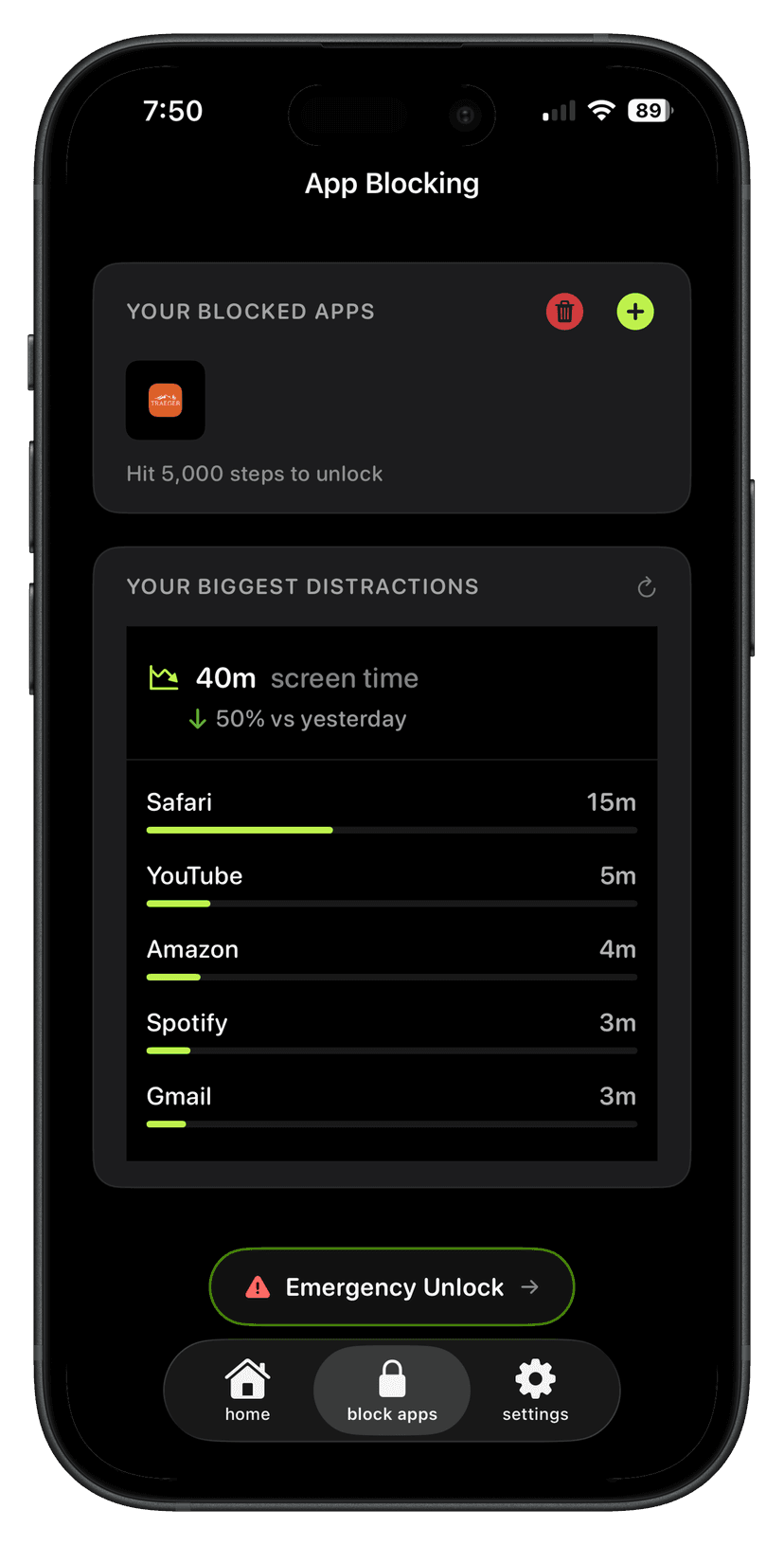
Step 1
Block the apps
Pick the ones that take the time. brb can show them ranked by screen time.
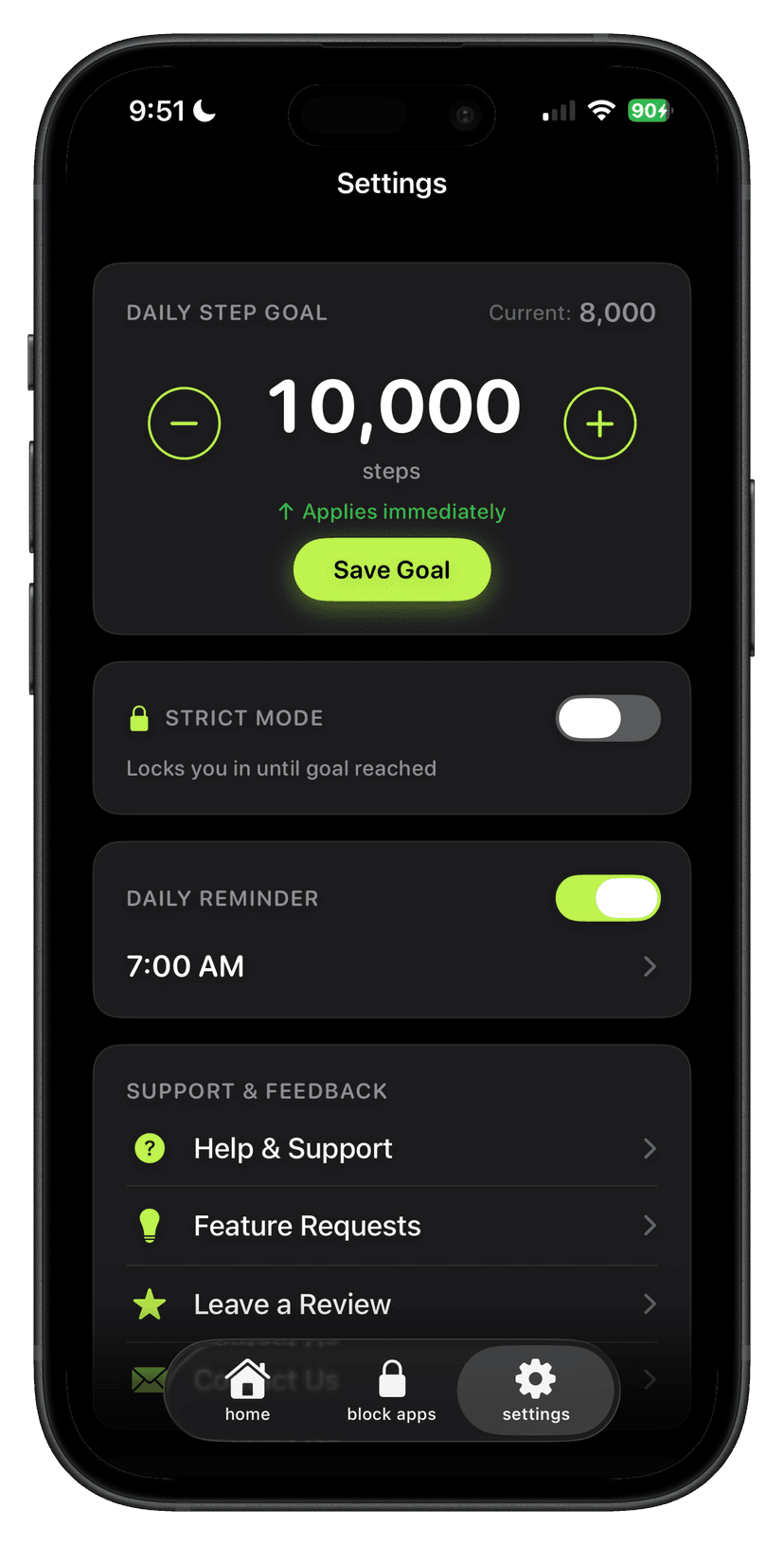
Step 2
Set the step goal
The apps stay locked until that number is real.
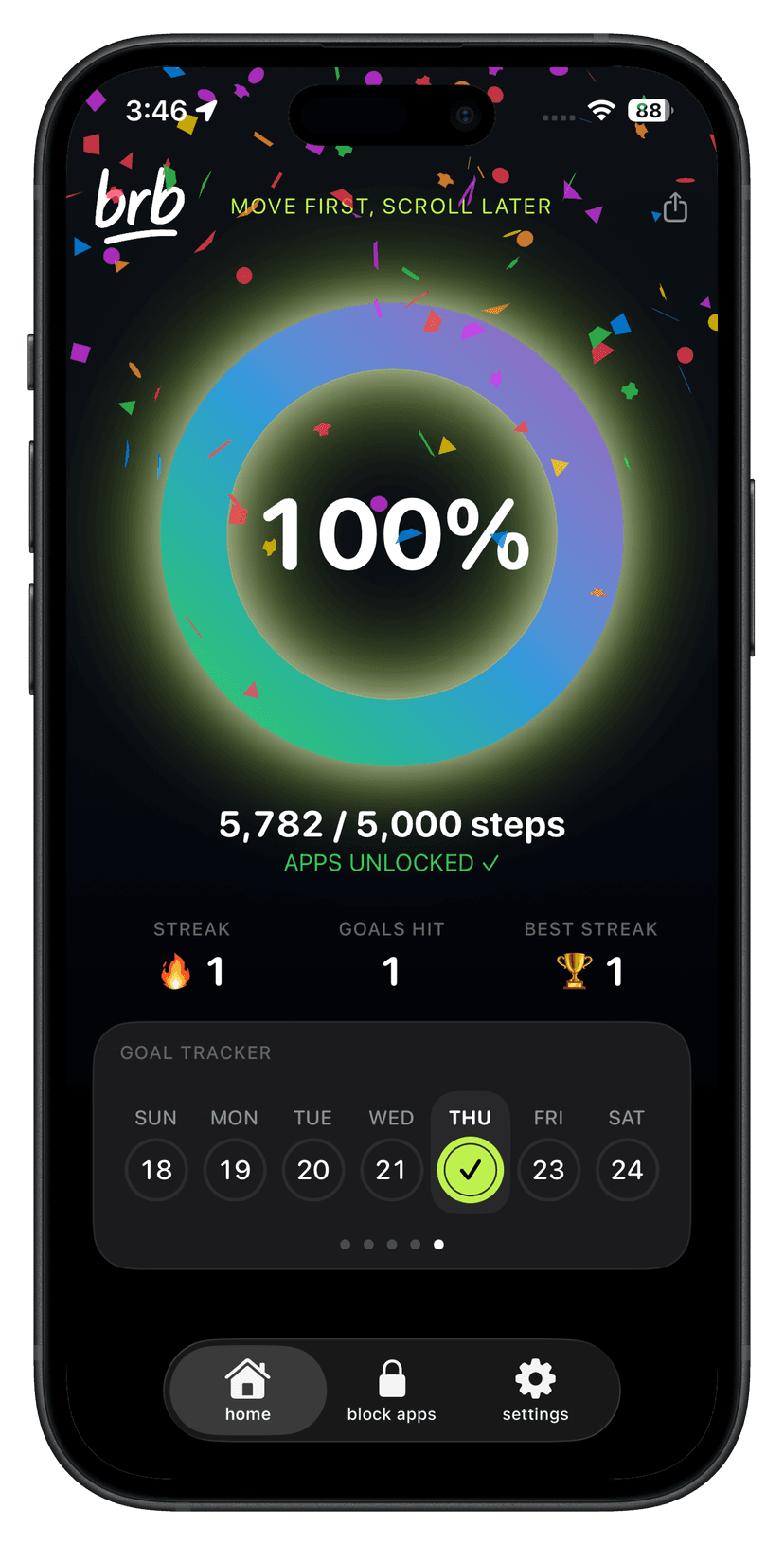
Step 3
Walk to unlock
The ring fills as you move. Hit it and the apps open. Miss it and they stay locked.
Setup checklist
- Charger out of bed.
- Feeds off page one.
- brb block list + hittable goal + Strict Mode.
- Walk before the feed.
Questions
How do I stop doomscrolling on iPhone?
Reduce access at zero willpower: environment changes plus a lock you cannot casually dismiss. brb uses a daily step goal for that lock.
Do Screen Time limits stop doomscrolling?
Only if you cannot clear them. If you can Ignore Limit or type your passcode, add a step lock.
Is deleting social apps better?
It works until you reinstall. A step gate keeps the apps, changes the price.